
Features
Organized by what you are trying to do. Everything on this page is in the app today.
Ask in plain language
Say what you need, review the plan, press Run.
Requests in any language
Press ⌘K and type what you want: “move the invoices into a new folder”, “select the images”, “sort by size”. You can write requests in any language, and Ask asks a short question when one is unclear.
Shortcut: ⌘K
A plan before anything changes
Ask shows which items, in which pane, and every step. Copying, moving, renaming, compressing and moving to the Trash wait until you press Run, and if anything changed since the preview, Ask shows the new plan instead of running. Afterwards, the Undo button or ⌘Z reverses what Ask did.
Questions answered on your Mac
Ask how many files a folder has, how much space they take, which are the largest or newest, or what differs between the two panes. The app counts the files itself; their contents are never sent.
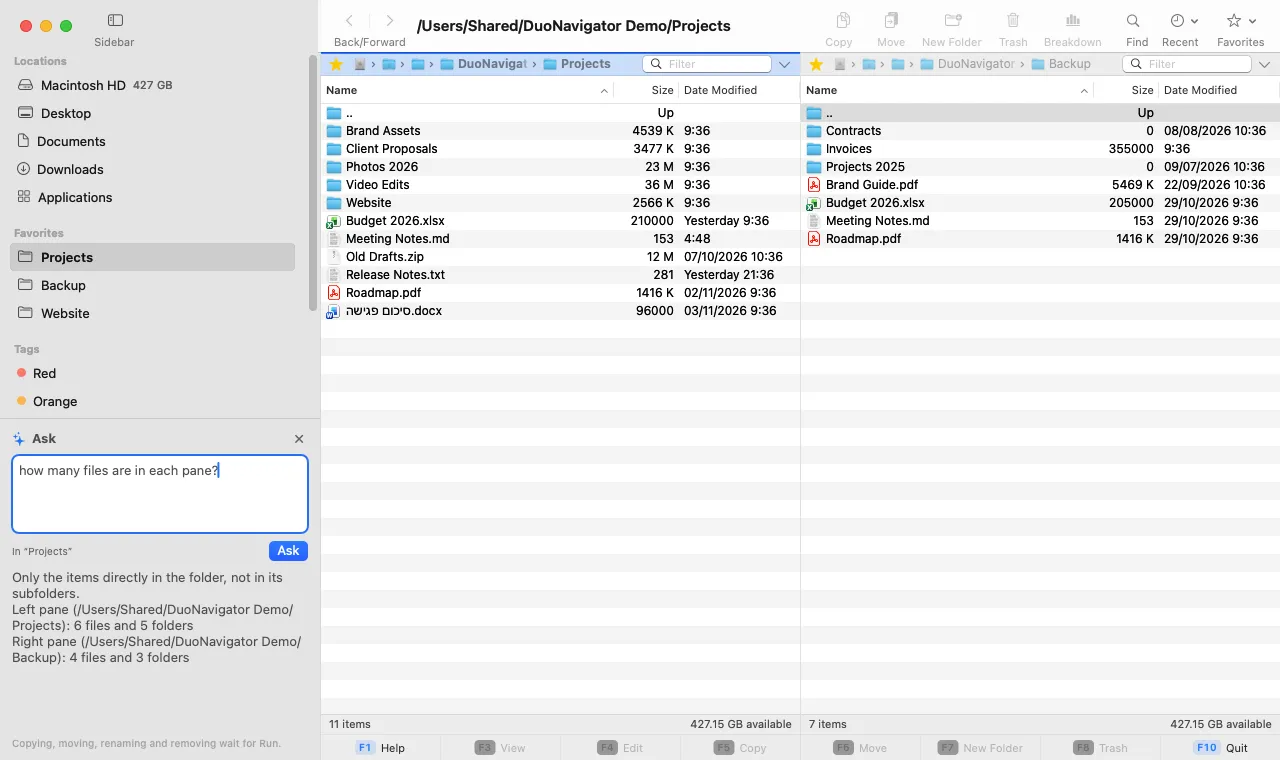
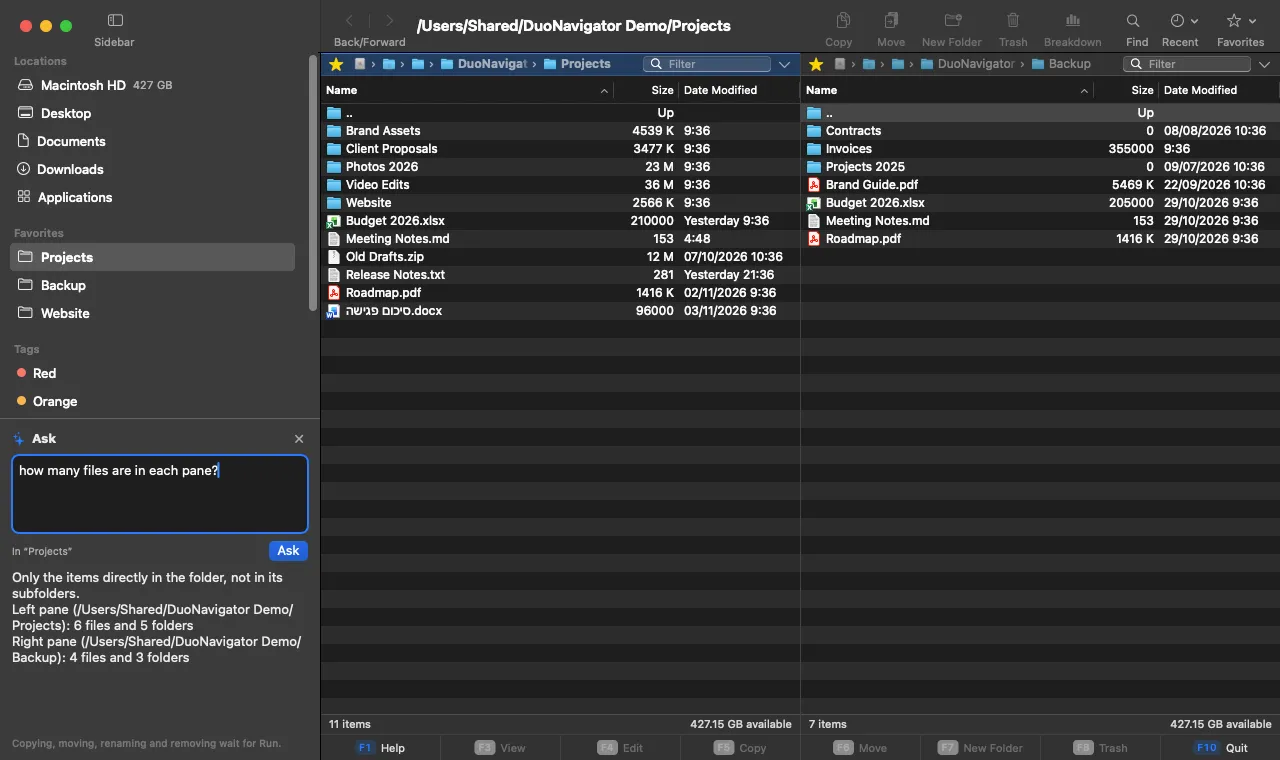
The whole app, by request
Ask runs the app’s own commands: open, view and edit files, sort, compress and extract, Batch Rename, Sync Folders, Folder Breakdown, find files, tabs and view options, through the same safe operations as the keyboard.
Off until you turn it on
Ask uses Claude (by Anthropic) through our server to understand the request. It sends the request, the folder paths (your home folder as ~) and file names, never file contents, and our server keeps no copy. The privacy policy has the details.
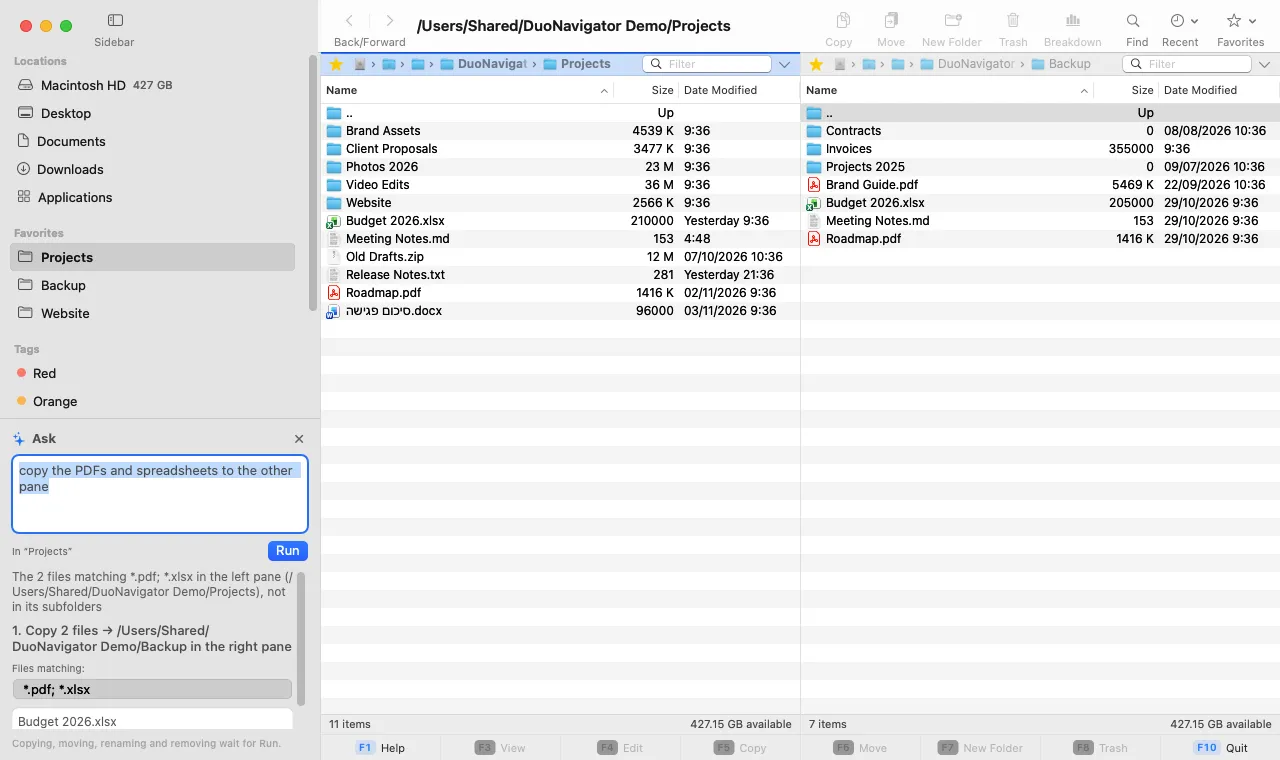
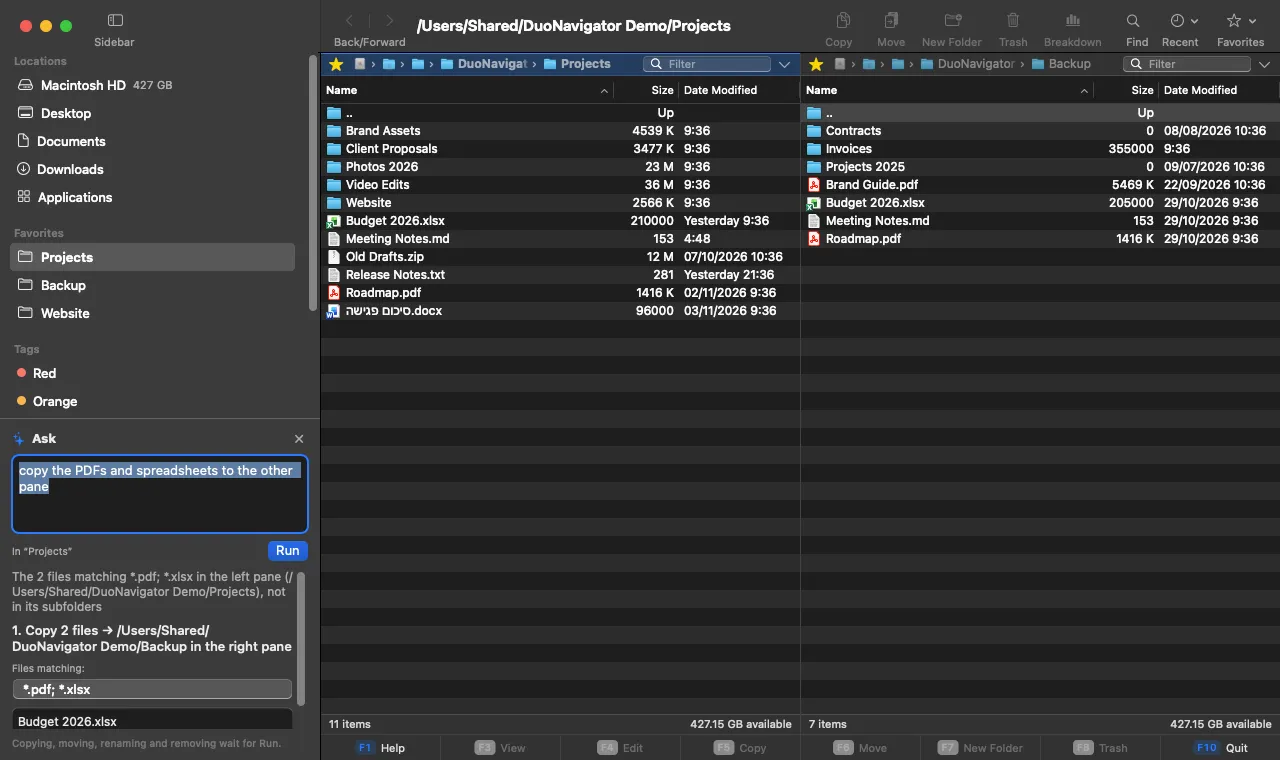
Get around quickly
Two independent panes and a keyboard-first workflow.
Two panes with tabs
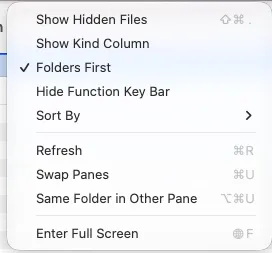
Each pane has its own folder, tabs and history. Press Tab to switch the active pane, swap panes with ⌘U, or show the same folder in both with ⌥⌘U.
Shortcut: Tabor⌘T
Sidebar
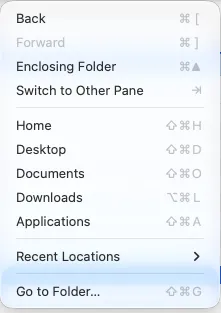
Disks with their free space, your standard folders, Favorites, tags and presets, in a sidebar you can hide with ⌃⌘S. Click to open in the active pane, ⌥-click for the other pane, or drop files on a location to copy them there.
Shortcut: ⌃⌘Sor⌥⌘S
Favorites and recent locations
Add the current folder to Favorites and jump to the first nine with ⌃1 to ⌃9. Recently visited folders are one click away in each pane and in the title bar.
Shortcut: ⌘Bor⌃1 … ⌃9
Finder tags
Click a tag in the sidebar to list every file with that tag, found by Spotlight.
Filter and hidden files
Filter the active pane by name, with wildcards, and show or hide hidden files whenever you need them.
Shortcut: ⌘For⇧⌘.
Copy, move and organize safely
File operations designed never to lose your data.
Copy and move between panes
F5 copies and F6 moves the selection to the other pane, with real progress and cancellation. Moves across volumes copy everything completely before the source is removed.
Shortcut: F5orF6
Undo and redo
Edit › Undo (⌘Z) reverses copying, moving, renaming, batch renaming, new folders and files, ZIP, sync and Move to Trash, up to 30 steps back. Copies go to the Trash and moved items go back; nothing is deleted permanently. Items changed since are left alone, and the history ends when you quit.
Shortcut: ⌘Zor⇧⌘Z
You decide on every conflict
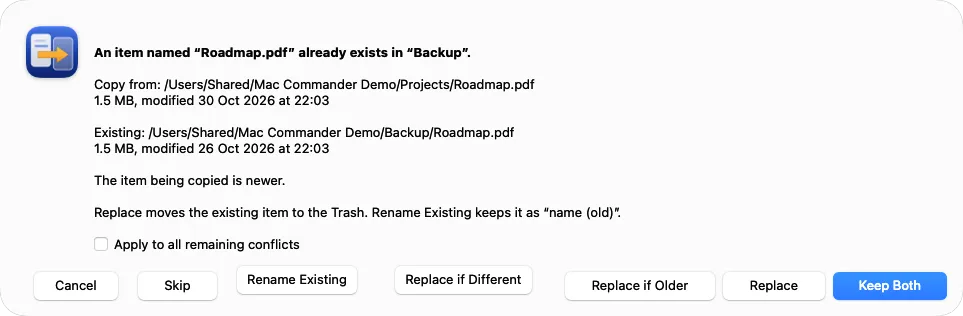
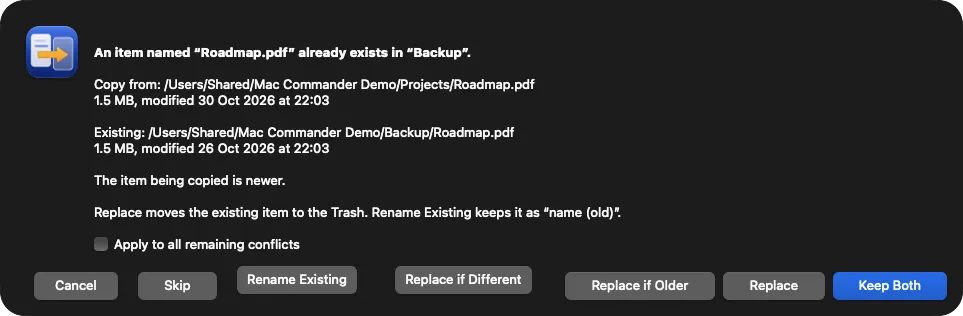
When a name already exists, choose Keep Both, Replace, Replace if Older, Replace if Different, Rename Existing or Skip — for one item or for all. Folders with the same name can be merged.
Trash, never permanent delete
Deleting moves items to the Trash, after confirmation. Replaced items go to the Trash too, so you can get them back.
Shortcut: F8
Batch rename
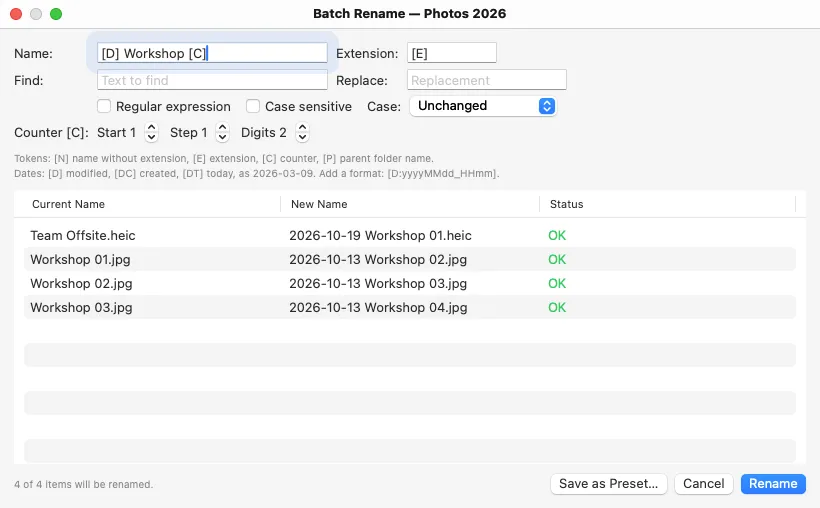
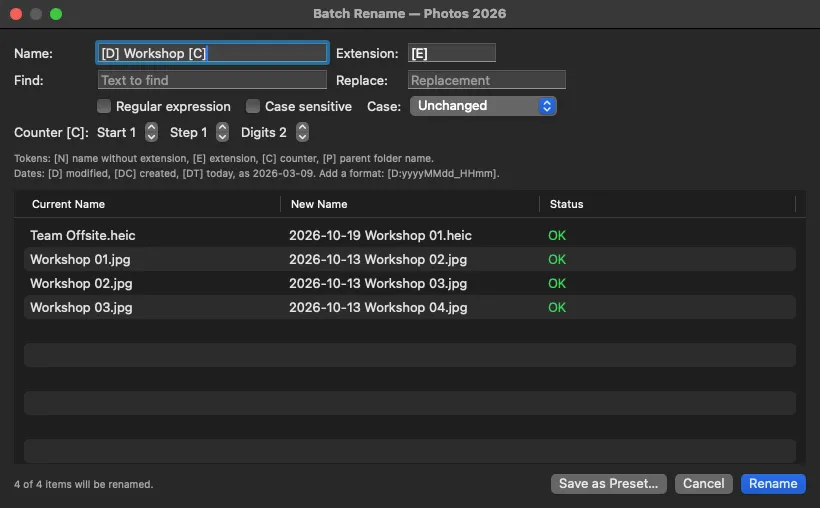
Rename many items at once with templates, counters, dates ([D] modified, [DC] created, [DT] today, in any format) and regular expressions. Name collisions are detected before anything is renamed.
Shortcut: ⌃⌘M
New folder with selection
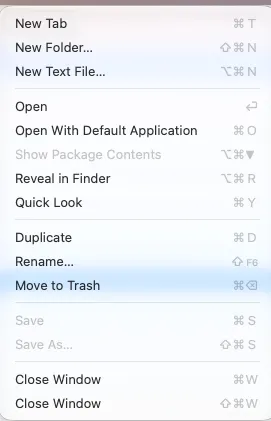
Create a folder and move the selected items into it in one step.
Shortcut: ⌃⌘N
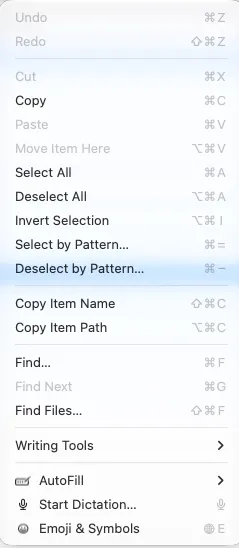
Select by pattern
Select or deselect items that match a wildcard pattern, or invert the selection.
Shortcut: ⌘=or⌘-
Keep folders in sync
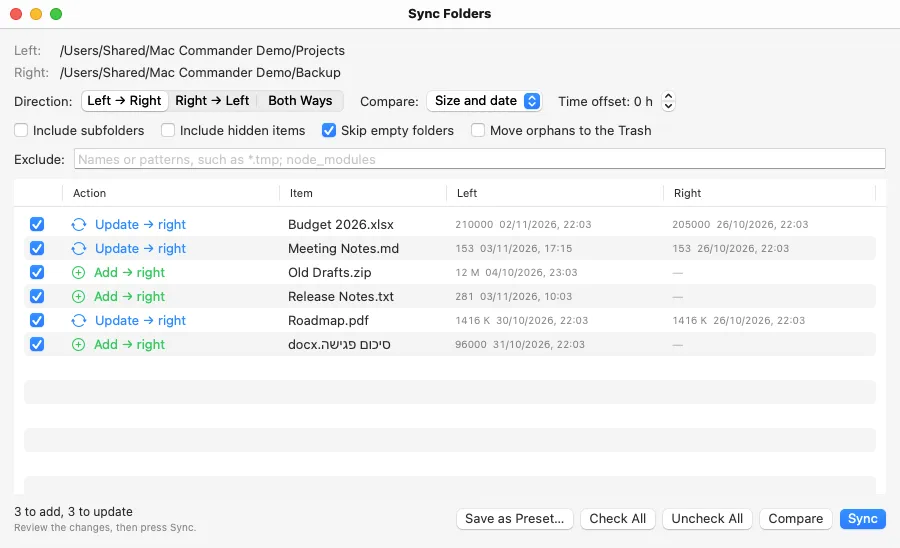
Compare two folders, review every change, then sync.
Sync folders
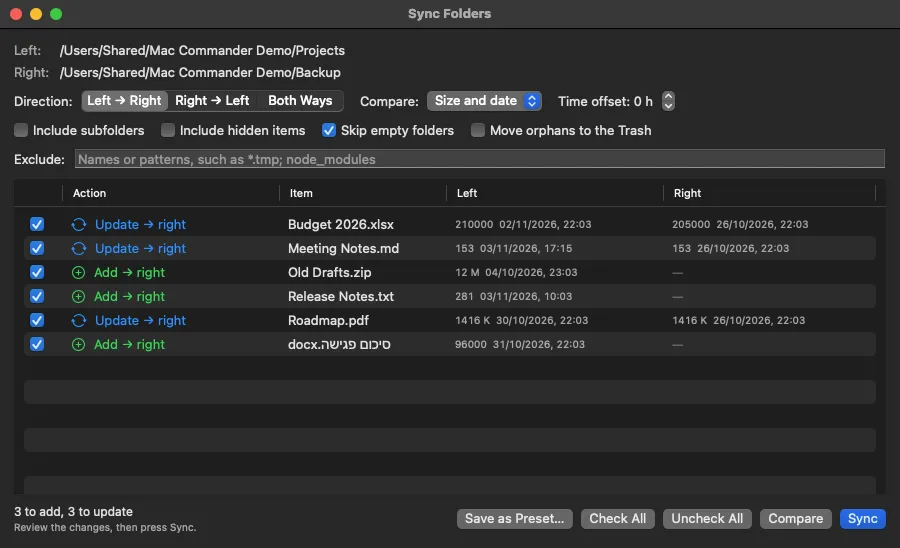
Compare the two panes’ folders in one direction or both ways, by size and date. Every change is listed for you to review and uncheck before anything is written. Replaced items and items removed from the target go to the Trash, and anything that changed after comparing is left alone.
Shortcut: ⌥⌘Y
Presets
Save a batch rename rule or a sync setup under a name, and run it again from the Commands menu or the sidebar.
Understand disk space
Find out what is taking up room.
Folder sizes
Calculate the size of the selected folders. Hard links are counted once and symbolic links are not followed.
Shortcut: ⌥⇧↩
Folder Breakdown
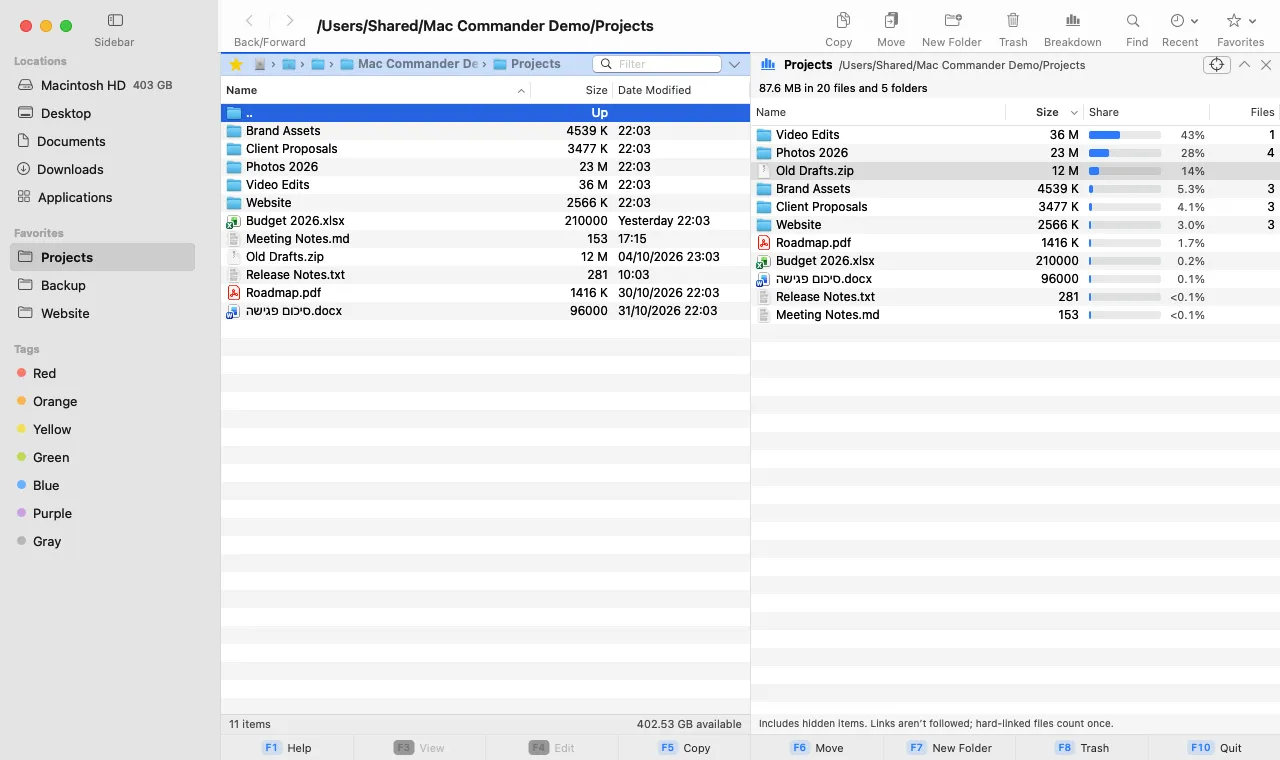
Show in the other pane what a folder is made of: every item with its size, share and file count, largest first. It can follow the cursor as you browse.
Shortcut: ⌥⌘B
Look inside files
Preview, view and edit without leaving the app.
Quick Look
Press Space to preview the selected file with macOS Quick Look.
Shortcut: Space
Text and hex viewer
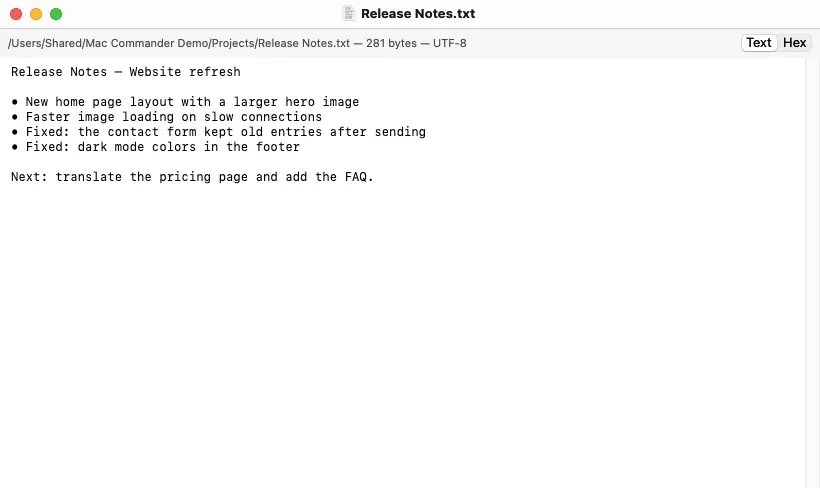
F3 shows text files as text and anything else as a hex dump.
Shortcut: F3
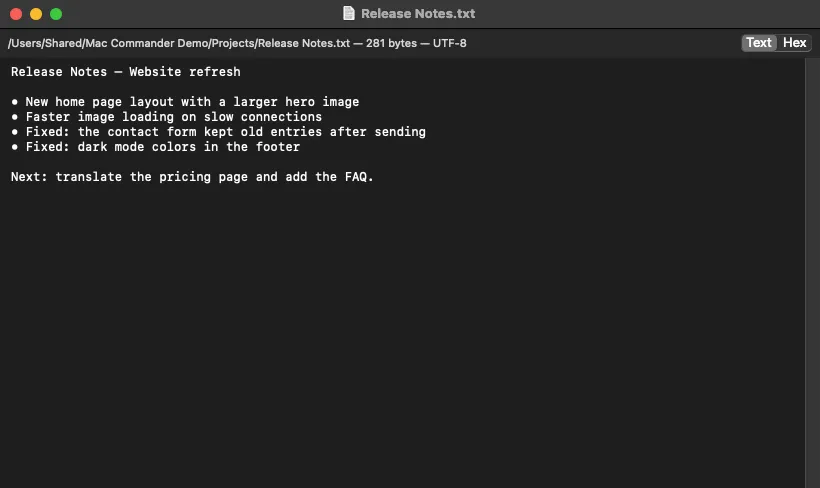
Careful text editor
F4 edits UTF-8 and UTF-16 files while keeping their encoding, byte order mark and line endings. It refuses binary files and warns if another app changed the file.
Shortcut: F4
Find files
Search for files by name in the current folder and all its subfolders, or ask Spotlight to search inside documents too.
Shortcut: ⇧⌘F
Work with ZIP archives
Create and extract archives between panes.
Compress and extract
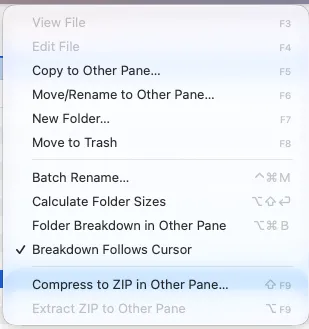
Compress the selection into a ZIP in the other pane, or extract a ZIP there. Existing items are never overwritten, and unsafe paths inside archives are rejected.
Shortcut: ⇧F9or⌥F9
For power users
The details that matter when you move a lot of files.
Decide up front
In the Copy and Move dialog, choose in advance what happens to items that already exist (ask each time, keep both, skip, replace if older or different, or rename the existing one) and whether folders with the same name are merged.
Sync the way you need
Left to right, right to left or both ways; compare by size and date, size or date; allow a time offset for drives written in another time zone; include or skip subfolders, hidden items and empty folders; exclude names like *.tmp or node_modules.
Shortcut: ⌥⌘Y
Copy names and paths
Put the selected items’ names or full paths on the clipboard, ready for Terminal, an email or a document.
Seven languages, right-to-left included
The app is in English, Hebrew, Arabic, German, Spanish, French and Russian, following your macOS language or the one you choose in Settings › Language. In Hebrew and Arabic the whole window is mirrored, while names and paths stay readable.
A native macOS app
Familiar, fast and private.
Built with AppKit
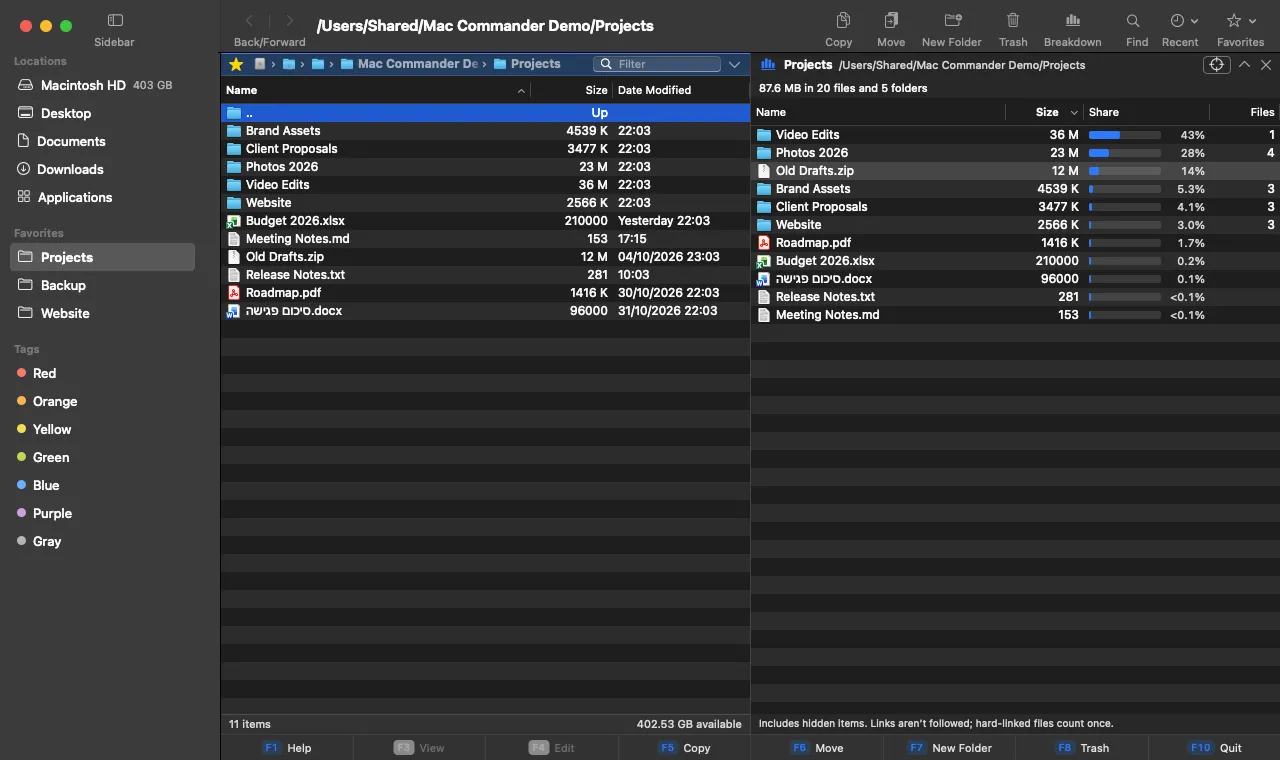
A native macOS app that follows the system’s light and dark appearance, with standard menus and Quick Look.
Function key bar
A clickable bar along the bottom shows the main commands (F1–F10). Commands that don’t apply are dimmed. You can hide it.
Any file name
Names in Hebrew and other scripts, mixed-direction names and emoji are listed and sorted correctly.
Works offline
No accounts, telemetry, web views or background services. The app never runs anything as root.
Current limitations
- ZIP64 archives (4 GB or more, or more than 65,535 entries) and encrypted archives are not supported, and archives can’t be browsed as folders.
- There is no permanent delete: items always go to the Trash.
- Ask needs an internet connection and can misunderstand a request: always check the plan before you press Run.
- Remote protocols (FTP, SFTP, cloud services) and an embedded terminal are not included. Sync works between folders on this Mac and its connected disks.
Ready to try DuoNavigator?
DuoNavigator is for macOS. Registrations help us decide what to build next; there is no announced release date for other platforms.